
How Do I Change Grades Outside the Grading Period
October 30, 2026
In the event that an instructor needs to change a grade after the university grading deadline, they must submit a Grade Change Request form. The following instructions will review how to submit a Grade Change Request form in my.SDSU.
Note: Approval of the academic college dean is required when lowering a grade, when a grade change is being submitted on behalf of faculty who are no longer with SDSU, or when a grade change is submitted by a teaching assistant. This may increase the processing time of the request.
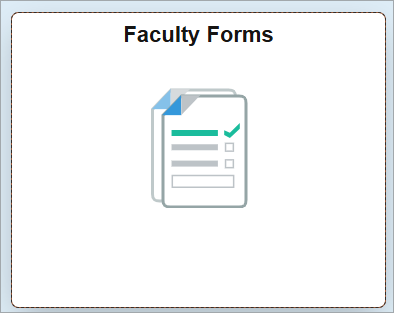
- On the my.SDSU homepage, select the Faculty Forms tile.
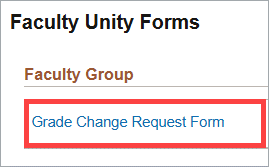
- On the Faculty Forms page, select the Grade Change Request Form.
- The Grade Change Request form will launch. The information under Faculty Info should automatically populate.
If it doesn't, enter you Faculty SDSUid (SDSU email address).

The rest of the Faculty Info fields will automatically populate.

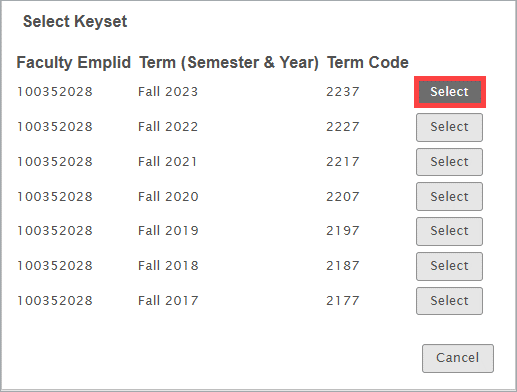
- Select the term when you taught the class you would like to change grades for.
- Select the course you would like to change grades for.
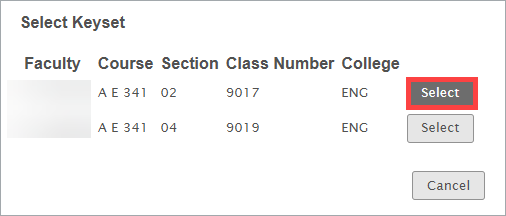
Note: You will need to complete a separate Grade Change Request form for each class. - You will see a list of students in that class and their current grades. Select the student whose grade you would like to change.
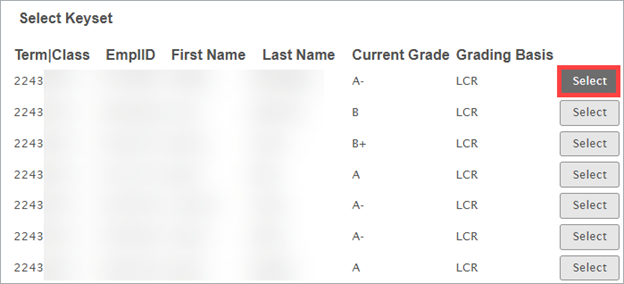
- The student's personal information and current grade will populate in the List of Students for Grade Change section. Under New Grade, select what you would like the student's new grade to be from the drop-down menu. Select the appropriate reason from the Grade Change Reason drop-down menu.

If you are changing a grade from an Incomplete (I), RP, or RD to a grade earned, the Grade Change Reason will automatically populate. Select the student's New Grade from the drop-down menu and enter the date the student completed their work under the Completion Date field (not required for an RD grade).

- If you would like to change the grade for additional students, select the Add button next to the List of Students for Grade Change and repeat the process. You can select up to 25 students per form. If you would like to remove a student, select Remove.
- When you have finished adding students, review the form and select the checkbox next to I certify that the information submitted is correct and accurate. Then, select Submit.

- You will see a confirmation message that the Office of the Registrar has received your request. You will receive email notifications with updates about the status of your form.