
How Do I View My Course Engagement?
Introduction
To remain in compliance with federal Title IV financial aid regulations, San Diego State University must document that students begin attendance in all of their enrolled courses. Student attendance in a course is documented through verified engagement with course materials. Additional information regarding SDSU's Attendance Verification Policy can be found on the Office of the Registrar website.
The Student Engagement page allows a student to view their engagement status for each class they are enrolled in for a given semester.
The engagement status for each course the student is enrolled in will be available on the first day of classes for that semester. A student can be marked as having engaged in a course in one of two ways:
- They have completed a submission for the course in Canvas. This could include a quiz, a survey, an assignment, or a discussion post, for example.
- The instructor can manually mark the student as having engaged in the course.
Please note that after completing work in Canvas, it may take up to 24 hours for Canvas engagement to be reflected in my.SDSU.
Students who are marked as a No, despite having engaged in the course, are encouraged to reach out to the instructor of the course as soon as possible to ensure that their financial aid is not impacted.
Instructions
- On the my.SDSU homepage, select the Academic Records tile.

- On the left side menu, select Student Engagement.

- On the Student Engagement page, select the desired Term from the drop-down menu. The term will default to the current term, or the most recent term the student was enrolled in.
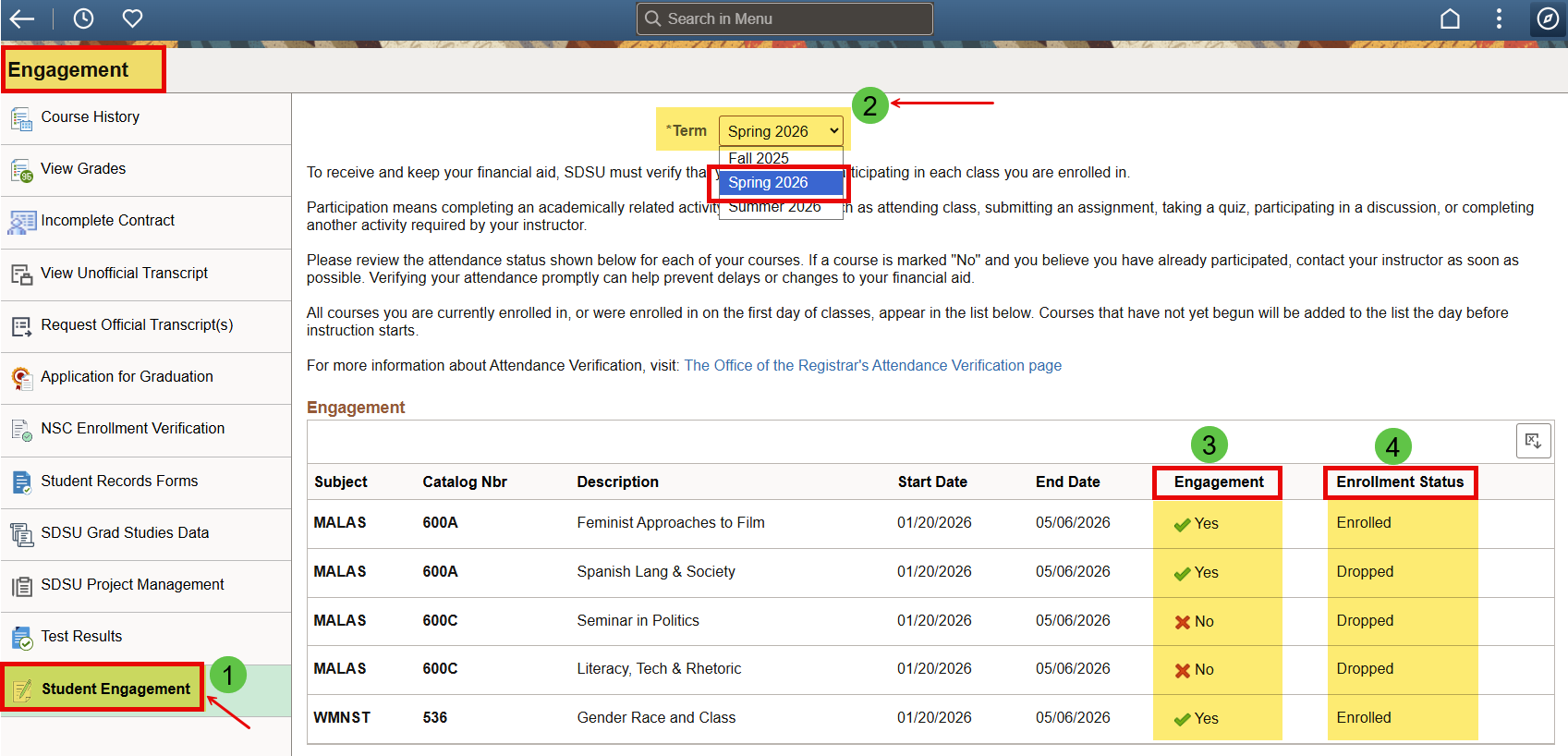
- The Student Engagement page will populate with the statuses for the student’s engagement for each course they were enrolled in for the semester. Note: if the student dropped a course after the semester started, it will remain visible on this page.
The Engagement column will indicate whether or not the student has engaged in the course.
- Yes (with a green check mark) indicates the student has engaged.
- No (with a red X) indicates the student has not yet engaged.
The Enrollment Status column indicates if the student is enrolled in the section.
- Enrolled means the student is enrolled in the class.
- Dropped means the student is not enrolled in the class.