
How Do I Access My Grade Roster?
November 3, 2026
Introduction
Note: Your screen may look different from the screenshots in this article.This guide will review how to:
- Access your Grade Roster.
The Grade Roster will be available starting on the first day of finals. You will only see it if you were assigned to the class as a primary instructor, secondary instructor, or teaching assistant by your Class Scheduler or other administrator. Please contact your Class Scheduler or administrator if you have questions about your Grade Roster access.
Note: More information about grading is available on the Office of the Registrar website.Note: For information on how to set up your gradebook to make submitting grades easier, please see the Canvas Gradebook Checklist and the Gradebook Setup Overview.When Can I See the Grade Roster?
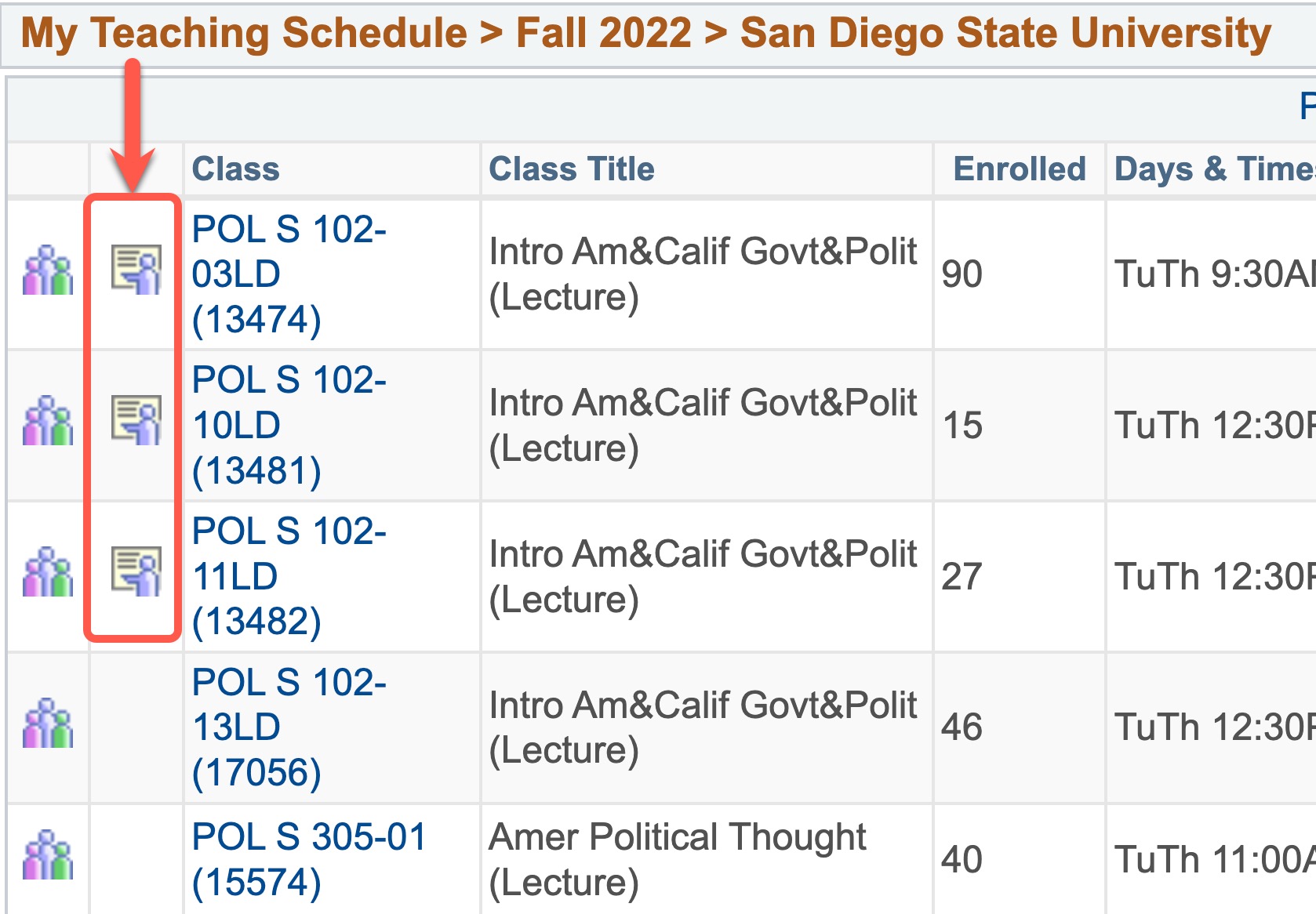
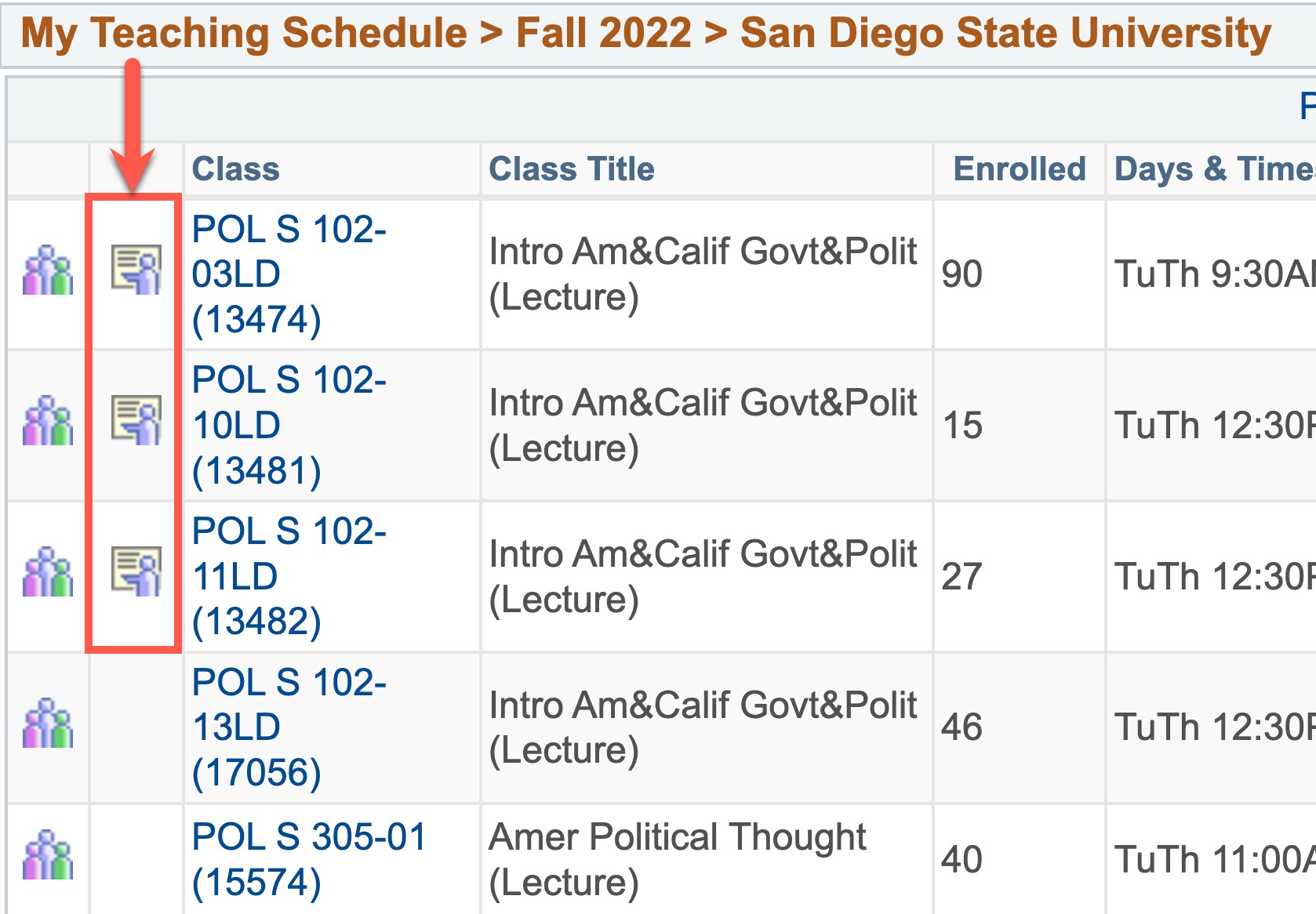
The Grade Roster icon will be available in your Schedule on the first day of finals.
Instructions
Note: Your screen may look different from the screenshots in this article.Access Your Grade Roster
Watch Tutorial
View Time | 1:02 Mins
Watch this video to learn how to access the Grade Roster in your course.
Read Tutorial
Access and information in the Faculty Center is based on faculty assignments and is term based.
- When you access the Faculty Center, you will see a list of classes in a given term. If you need to access a different term, select the 'Change Term' icon.
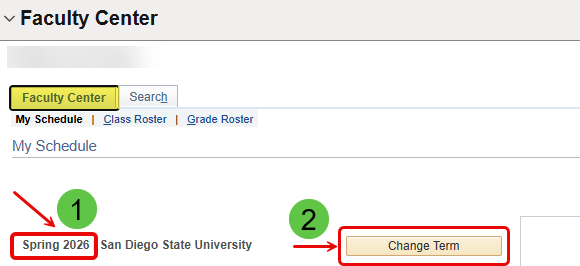
- This brings up the list of terms based on the history of your faculty assignments and workload at SDSU.
Select the term you wish to view, then hit the 'Continue' icon.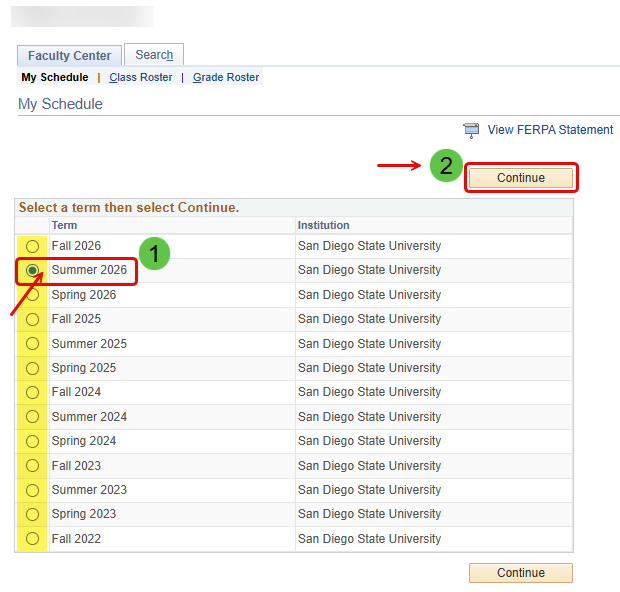
- In the Faculty Center under the My Schedule subtab, select the Grade Roster icon next to the class you wish to grade.

- You have the option of entering grades uisng a (1) Manual Grade Entry or (2) Canvas Grade Import Process. A Manual Grade Entry is helpful for smaller class sizes. Consider using the Canvas Grade Import method if you have a large class size. Either method will work for any class.
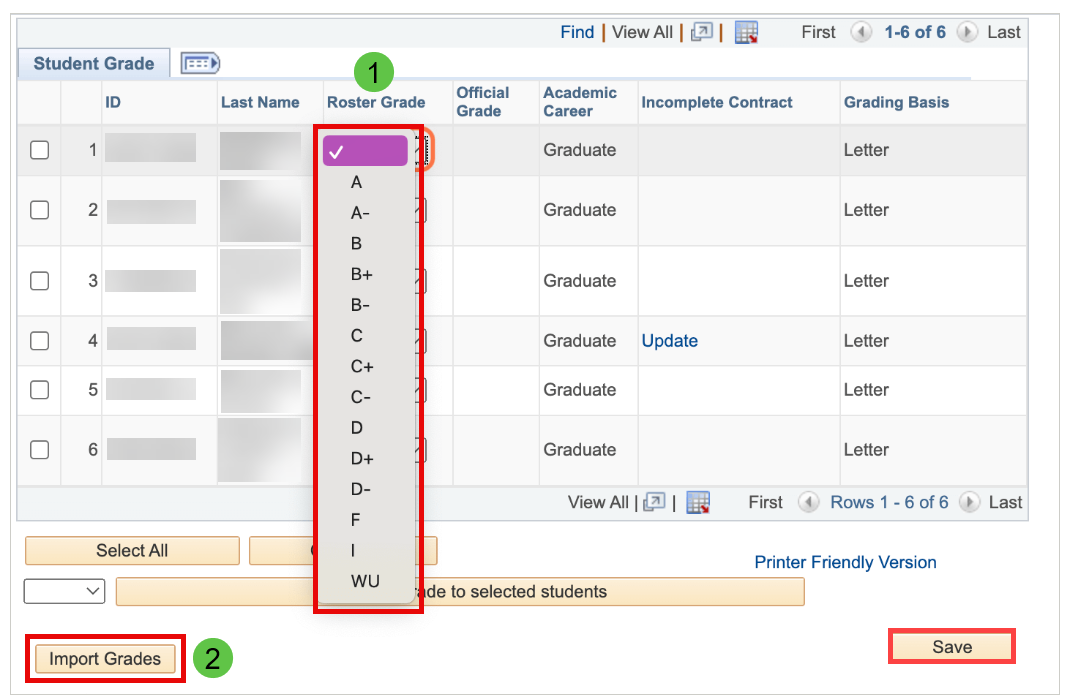
Both guides also review the grade finalization and posting process.