
How Do I Change Grades During the Grading Period?
Introduction
Note: Your screen may look different from the screenshots in this article.There are several methods for changing the grades once they are posted based on the grading period time frame.
You will be able to update posted grades in my.SDSU during the grading period using the Request Grade Change feature.
You will be able to update posted grades in my.SDSU after the grading period using the Grade Change Request form.
Please see instructions for changing grades during the grading period and outside of the grading period below:
- Changing Grades when in the Approved Status but not Posted
- Changing Posted Grades during the Grading Period
- Creating A New Incomplete Agreement After Posting Grades
Note: More information about grading is available on the Office of the Registrar website.
Instructions
Changing Grades when in the Approved Status but not Posted
During the grading period an instructor is able to change a grade that is in the Approved Status but not Posted.Note: The Grade Roster Action Approved Status will only be available through the end of the grading period.
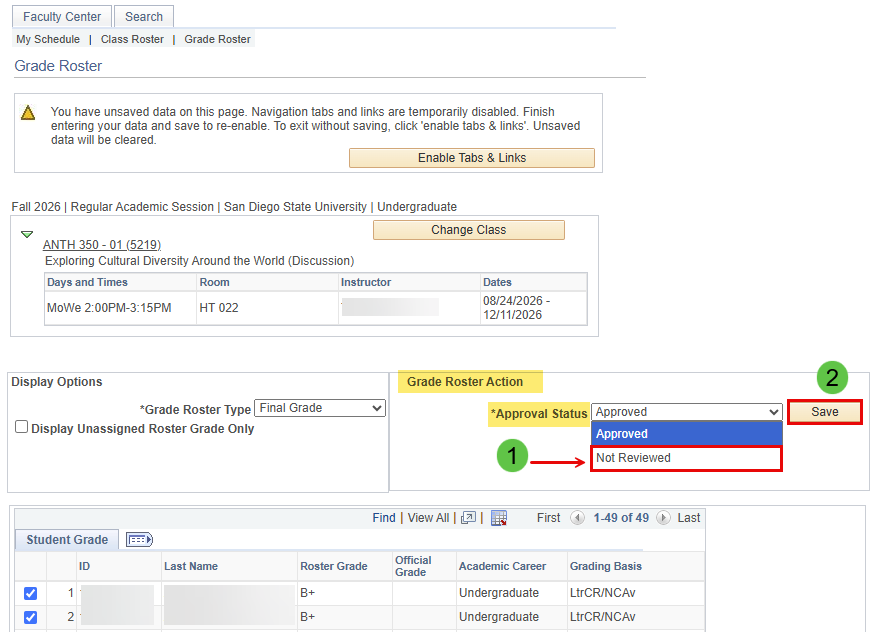
- From your Grade Roster, navigate to the Grade Roster Action and change the Approved Status from Approved to Not Reviewed and click Save.
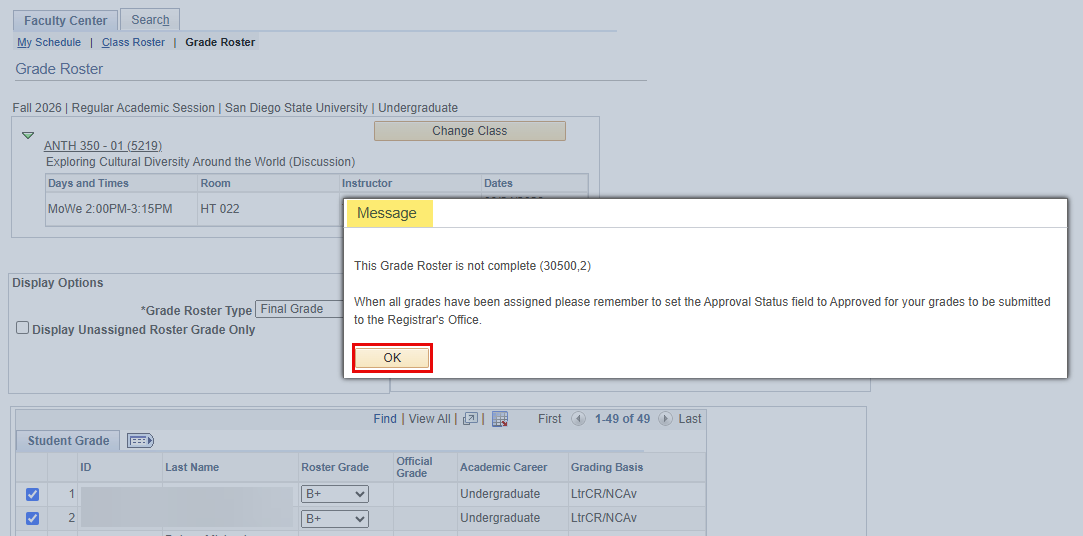
- Once you click Save you will see a warning message reminding you to set the Approval Status back to Approved after you make your changes. This ensures that the updated grade(s) will be posted.
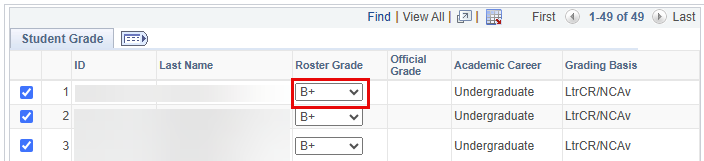
- You are now able to change the grade for the specific student.
- Click Save to save the grade change.
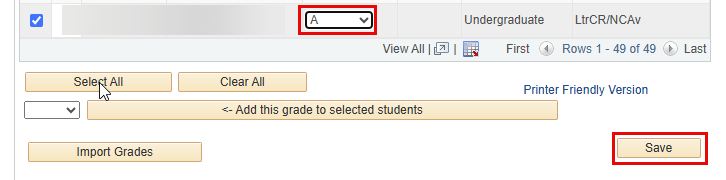
This will prompt the warning message to change the Approved Status back to Approved.
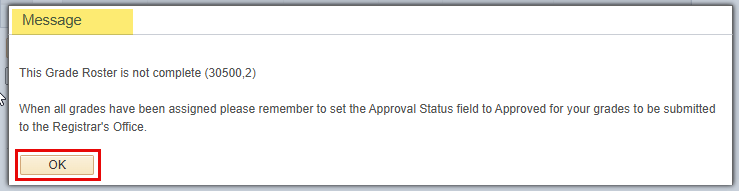
- Change the Approved Status from Not Reviewed to Approved and click Save.

- If you have POST access, you will get the reminder message to POST your grades.
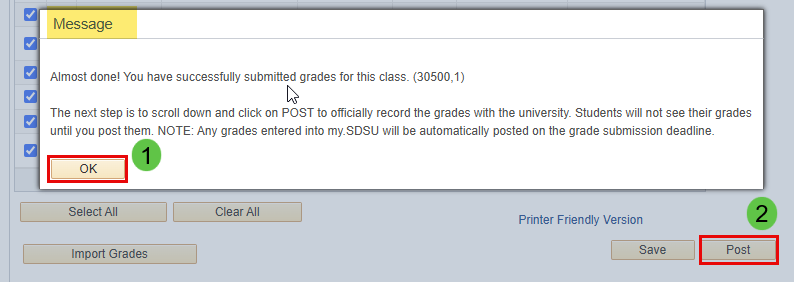
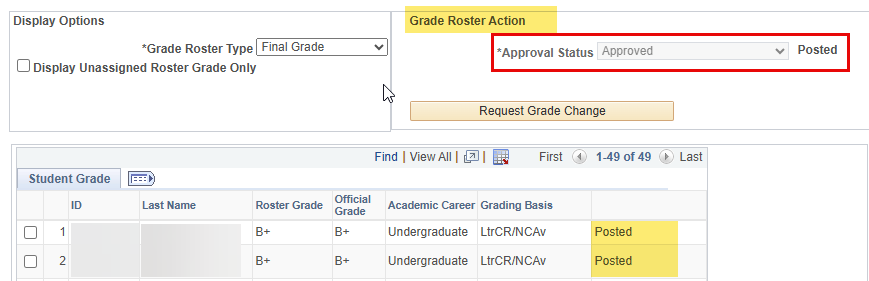
Note: If you do not have POST access, your grades will be posted the day after the grading period has ended.
Changing Posted grades during the Grading Period
Note: The Request Grade Change feature will only be available through the end of the grading period.
Access and information in the Faculty Center is based on faculty assignments and is term based.
- From your Grade Roster, select Request Grade Change under the Grade Roster Action section.
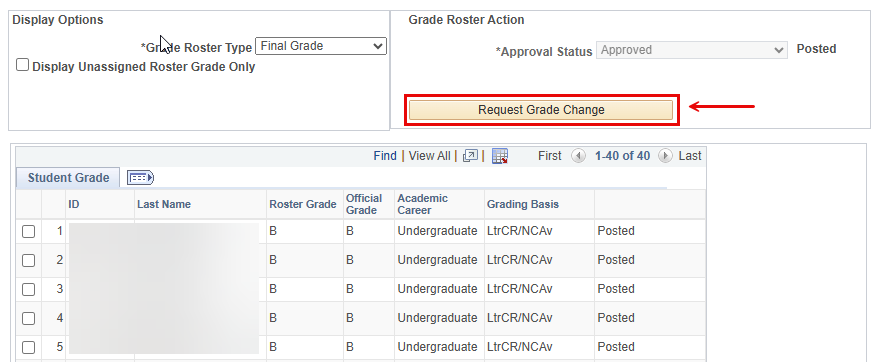
- Student grades can be adjusted using the grading scale. You will be able to manually update any student grades to make them higher, such as correcting a B to an A, or lower, such as correcting a B or a C. Select the appropriate student(s) and correct any grade(s) that were incorrectly posted from the drop-down menu.
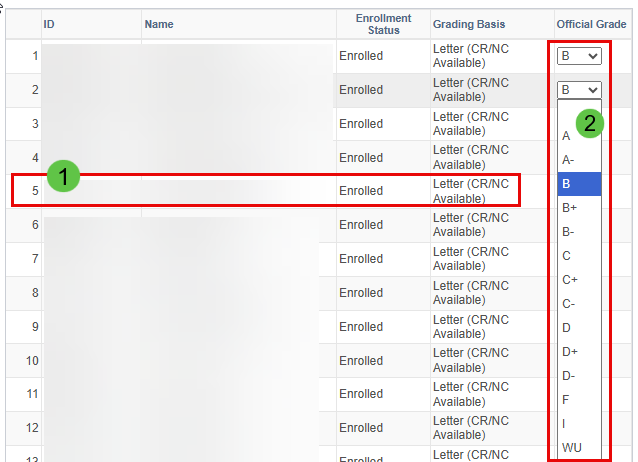
Then scroll down to the bottom of the page and select Submit.
You will see Success posted in anew column next to any grades that you changed.

When you return to your grade roster, you will see an Official Grade column to the right of the Roster Grade column. The Official Grade will reflect any changes you made to posted grades. The Roster Grade will show the grade that was originally posted.

Creating A New Incomplete Agreement After Posting Grades
You have the option to add an Incomplete Agreement in my.SDSU after posting grades if needed. Please see the How Do I Manage Incompletes? guide for instructions on how to create an Incomplete Agreement.