How Do I View Class Rosters?
Introduction
Note: Your screen may look different from the screenshots in this article.The Faculty Center contains three subtabs that assist with organizing course information and enrollment: My Schedule, Class Roster, and Grade Roster.
This guide will cover the Class Roster, which allows instructors to view the students who are enrolled in a class, have dropped a class, or are on the waitlist for a class.
Instructions
Watch Tutorial
View Time | 1:13 Mins
Watch this video to learn how to view your Class Rosters in my.SDSU.

Read Tutorial
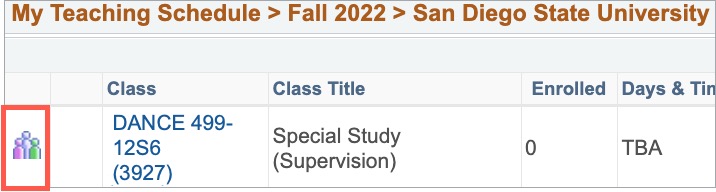
In your Faculty Center, as students enroll into your classes, the Class Roster icon  will appear to the left of the class.
Access and information in the Faculty Center is based on faculty assignments and is term based.
- When you access the Faculty Center, you will see a list of classes in a given term. If you need to access a different term, select the 'Change Term' icon.
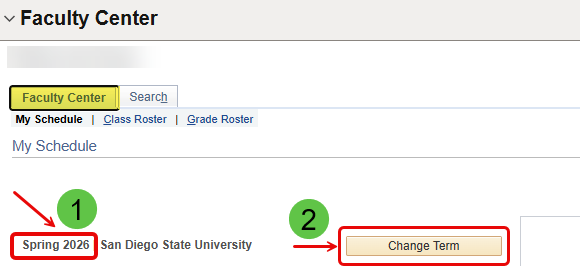
- This brings up the list of terms based on the history of your faculty assignments and workload at SDSU.
Select the term you wish to view, then hit the 'Continue' icon.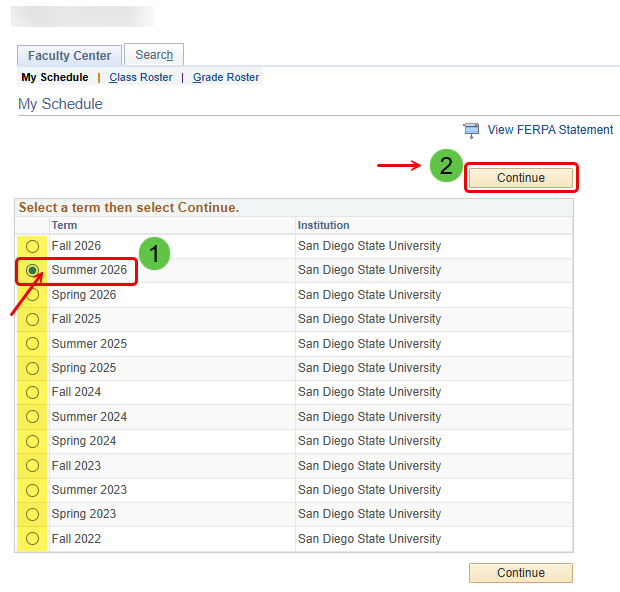
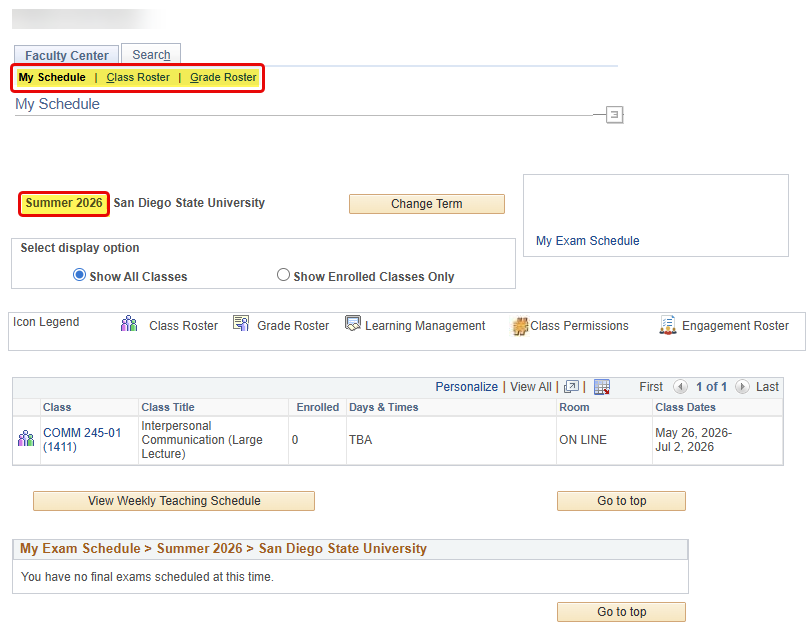
- To view a roster, select the Class Roster icon next to a class displayed under My Teaching Schedule.
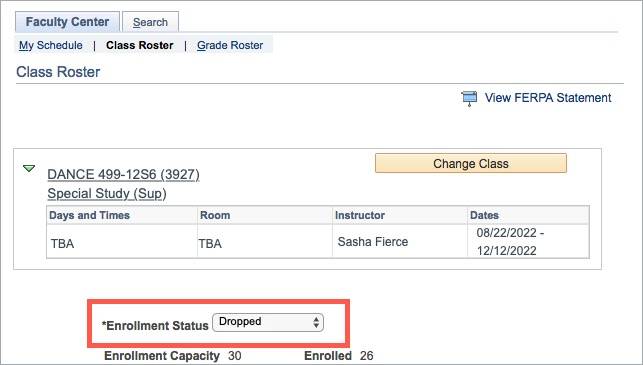
- To view dropped students, select the Dropped option from the Enrollment Status drop-down menu.
-
Refer to the Waitlist guide for instructions on how to view waitlisted students.
-
To sort the roster in ascending order by any column title, select that column header such as Name. Select Name again to sort the roster in descending order by student name.
Other sorting features include ID, Grade Basis, Units, Program and Plan, Academic Level, Grade Date (Dt), and Incomplete Grade Assignment.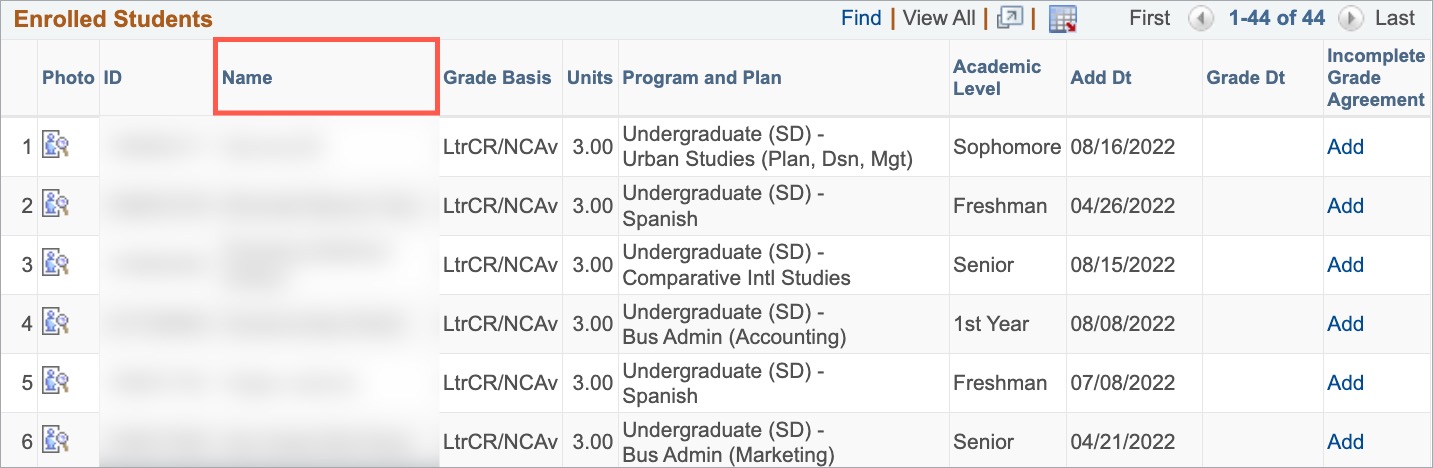
-
To download the roster and view in Excel, select the Excel Export icon:

-
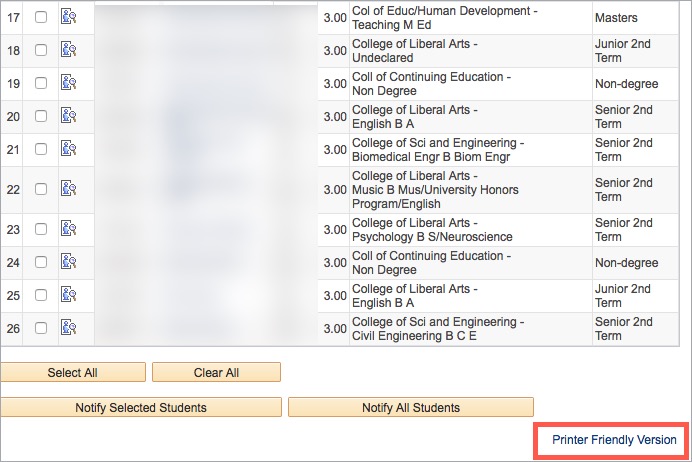
To print your class roster, at the bottom of the page, select Printer Friendly Version. Select the Print option from your browser window.
Note: If your Class Roster does not appear, your department has not yet assigned you to your class or classes. Please contact your departmental administrator.
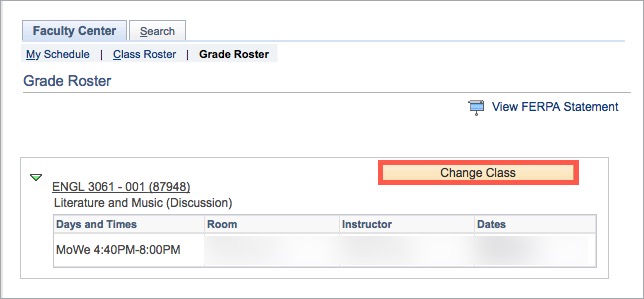
- When you are finished, select Change Class to return to the Faculty Center.