
How Do I Submit and Post Grades in my.SDSU?
Introduction
Note: Your screen may look different from the screenshots in this article.
This guide will review how to:
- Submit and Post Grades During the Grading Period
The Grade Roster will be available starting on the first day of finals. You will only see it if you were assigned to the class as a primary instructor, secondary instructor, or teaching assistant by your Class Scheduler or other administrator. Please contact your Class Scheduler or administrator if you have questions about your Grade Roster access.
Note: More information about grading is available on the Office of the Registrar website.
Note: For information on how to set up your gradebook to make submitting grades easier, please see the Canvas Gradebook Checklist and the Gradebook Setup Overview.
When Can I See the Grade Roster?
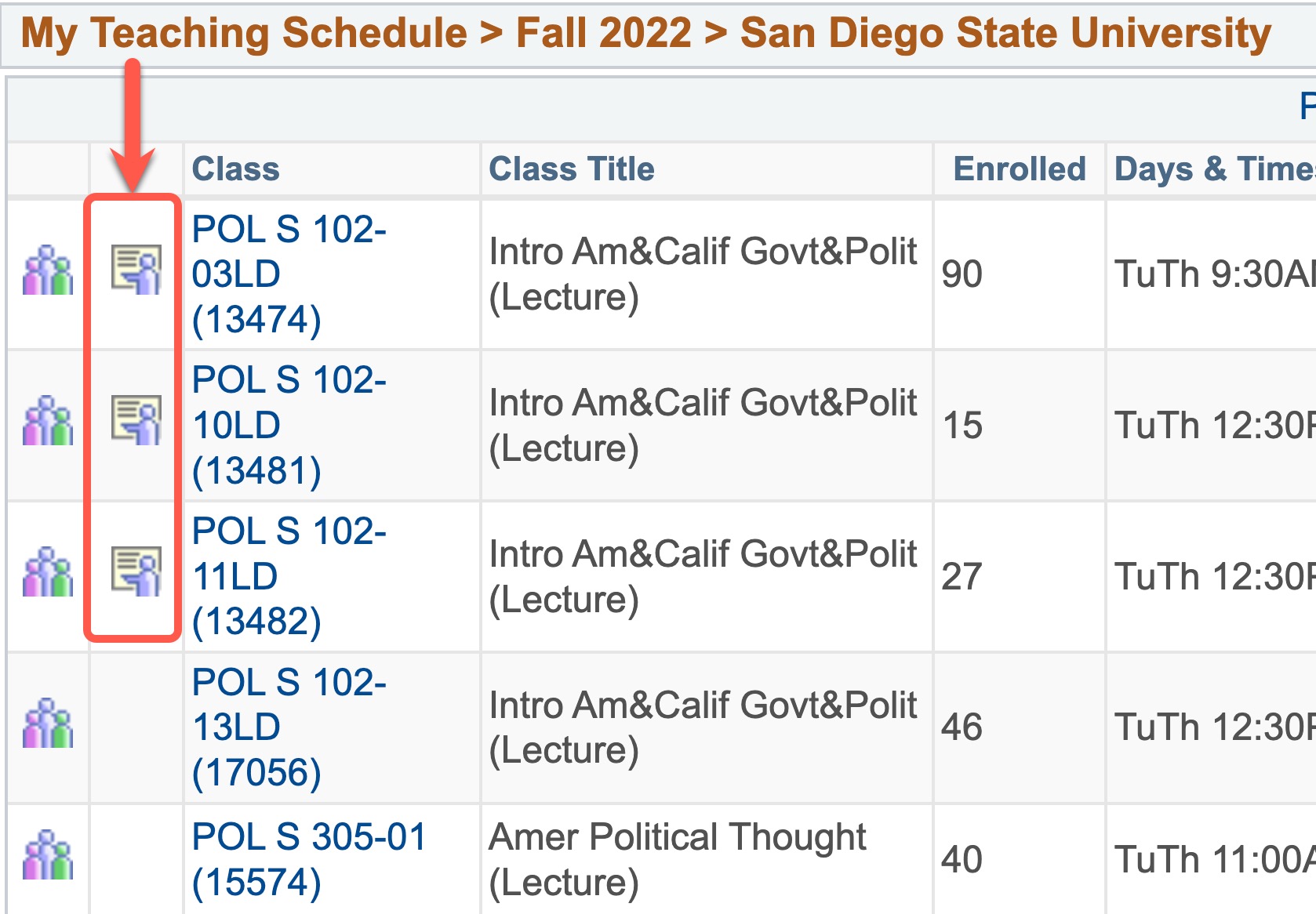
The Grade Roster icon  will be available in your Schedule on the first day of finals.
Instructions
Enter And Save Your Grades
You have two options to enter grades: (1) Manually Enter Grades or (2) Use the Canvas Grade Import Process. Manually Entering Grades is helpful for smaller class sizes. Consider using the Canvas Grade Import method if you have a large class size. Either method will work for any class.
Both guides also review the grade finalization and posting process.
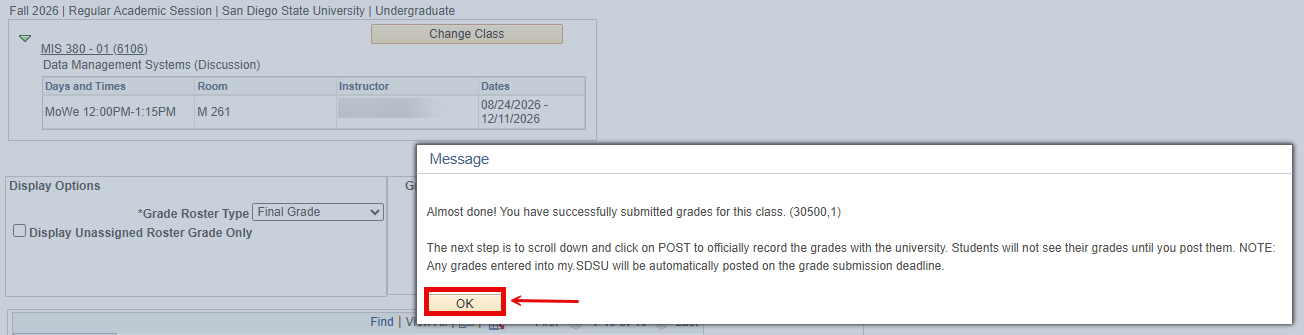
- After you have manually entered or imported your grades using the Canvas Grade Import process, select the Save button located at the bottom of the grade roster screen.

- A message will appear to inform you that your grades are saved, but not yet posted. Select OK.
Post Grades
Watch Tutorial
View Time | 1:29 Mins
Watch this video to learn how to post grades in my.SDSU
Note: This video blurs student information

Note: When Post is selected, all of your student grades will be posted at once. It is not possible to submit and post individual grades one by one.Read Tutorial
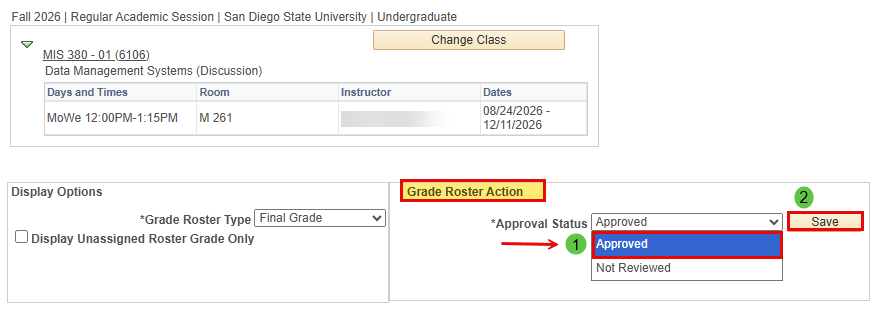
To post your grades, navigate to the Grade Roster Action section located above the grade roster.
- In the drop-down menu, choose Approved and then select Save.
- The following message will appear:
- Scroll to the bottom of the page and select Post to submit your grades to the registrar.

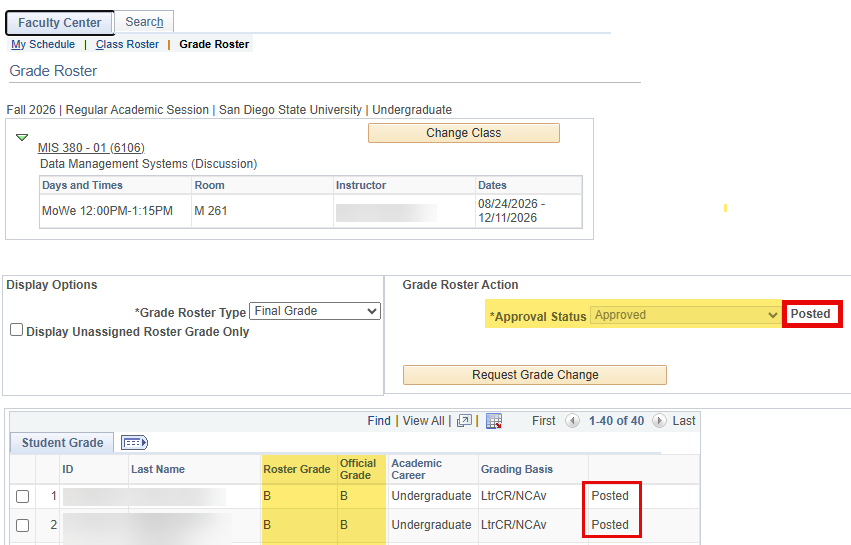
- When the grades are posted, the Status column to the right of the Grading Basis column will update to Posted.
- When you are finished, select Change Class at the top of the page to return to the Faculty Center.
Faculty only have access to change posted grades in my.SDSU during the grading period. Please note that this option should be used very sparingly. For additional information, please read How Do I Change Grades During the Grading Period guide.