
How Do I Validate Course Enrollment?
March 24, 2026
Introduction
Note: Your screen may look different from the screenshots in this article.Use the Validate feature in your Shopping Cart to determine if you are eligible to enroll in a course for a specific term. The validate message confirms whether you are approved or denied to enroll in a course for the given term.
Instructions
View Your Shopping Cart
- Select the Manage Classes tile from your my.SDSU Homepage.
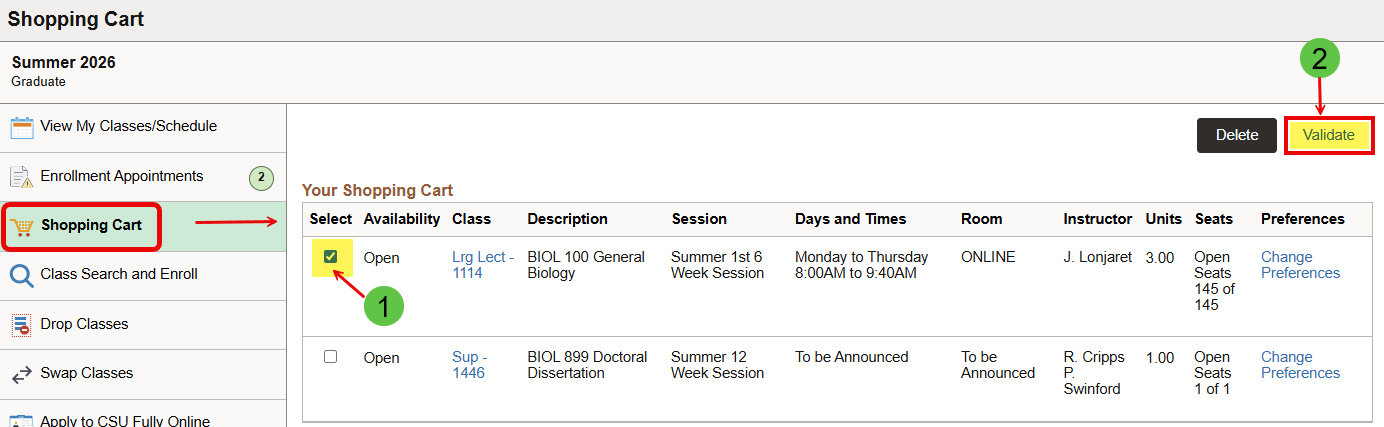
- Navigate to the Shopping Cart link from the left menu. Select the appropriate term and courses you wish to validate and enroll in. Refer to the Class Search and Add Class to Shopping Cart guides for instructions on how to search for a course and add a course to your shopping cart.

Select the Course(s) in Your Shopping Cart
- Check the box next to one or more courses that you wish to validate.
- Select the Validate icon located on the top right corner of the page.
Validate the Course(s) in Your Shopping Cart
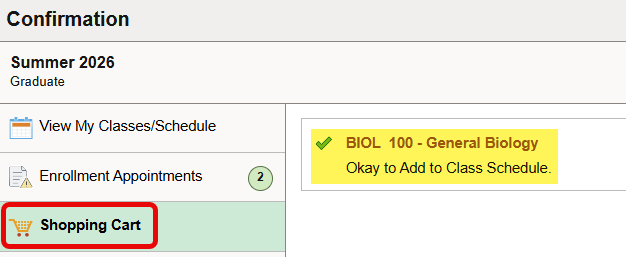
- Once you click the Validate icon you will receive message(s) pertaining to the course(s) you checked to validate.
- A green checkmark message indicates that you are approved to add the selected class to your Class Schedule.
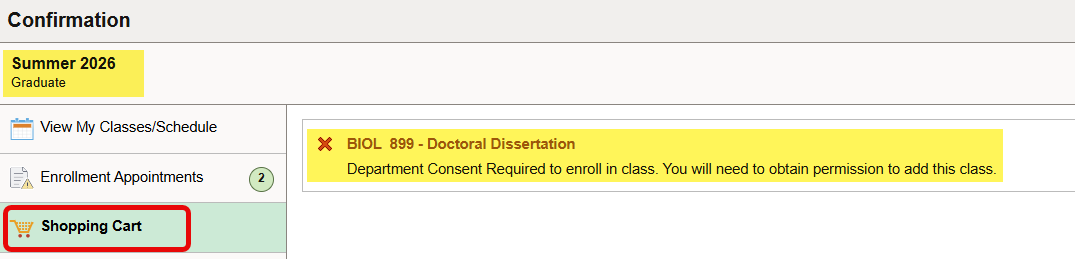
- A red 'x' message indicates that you are not approved to add the selected class to your Class Schedule. The message also indicates why you are not permitted to add the class.
- After you complete the validate process, navigate back to your shopping cart to complete the enroll process for the term.